Divi Read More Toggle
Keep your layouts clean and user-friendly with an expandable Read More / Show Less button. Works on any Divi text module, with customizable text and styling. Lightweight, fast, and perfect for long content, testimonials, or product descriptions.

ABOUT
Divi Read More Toggle is the simplest way to keep your Divi layouts clean and professional while still showing all the content your visitors may want to read. Instead of overwhelming your page with long paragraphs, you can add a sleek Read More / Show Less button to any text module with just a CSS class.
Perfect for long descriptions, testimonials, blog previews, FAQs, or product details, this plugin ensures your content looks elegant while staying user-friendly.
Features:
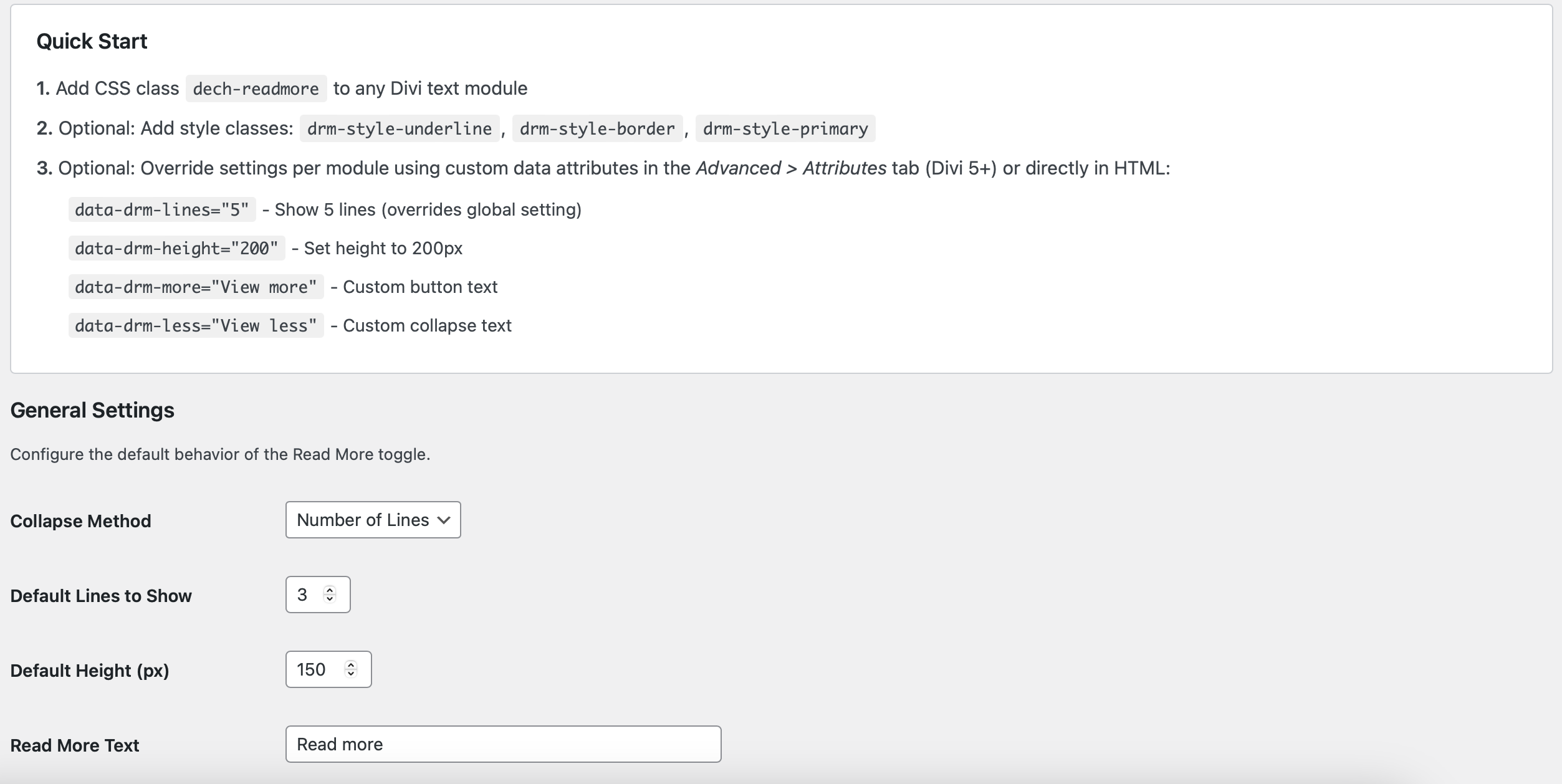
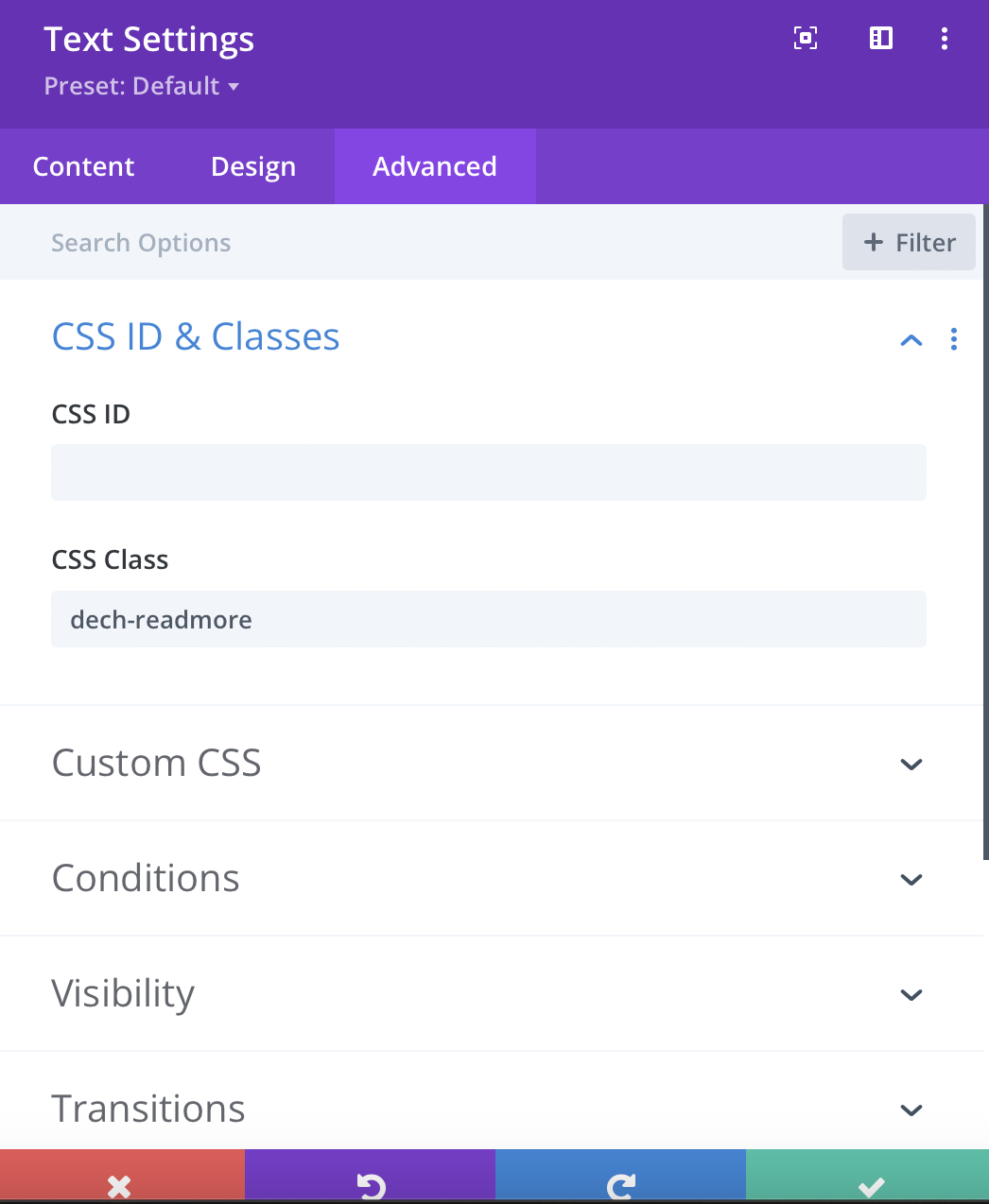
Easy setup – just add the dech-readmore class to any Divi text module.
Two collapse methods – limit by number of lines or by fixed height (px).
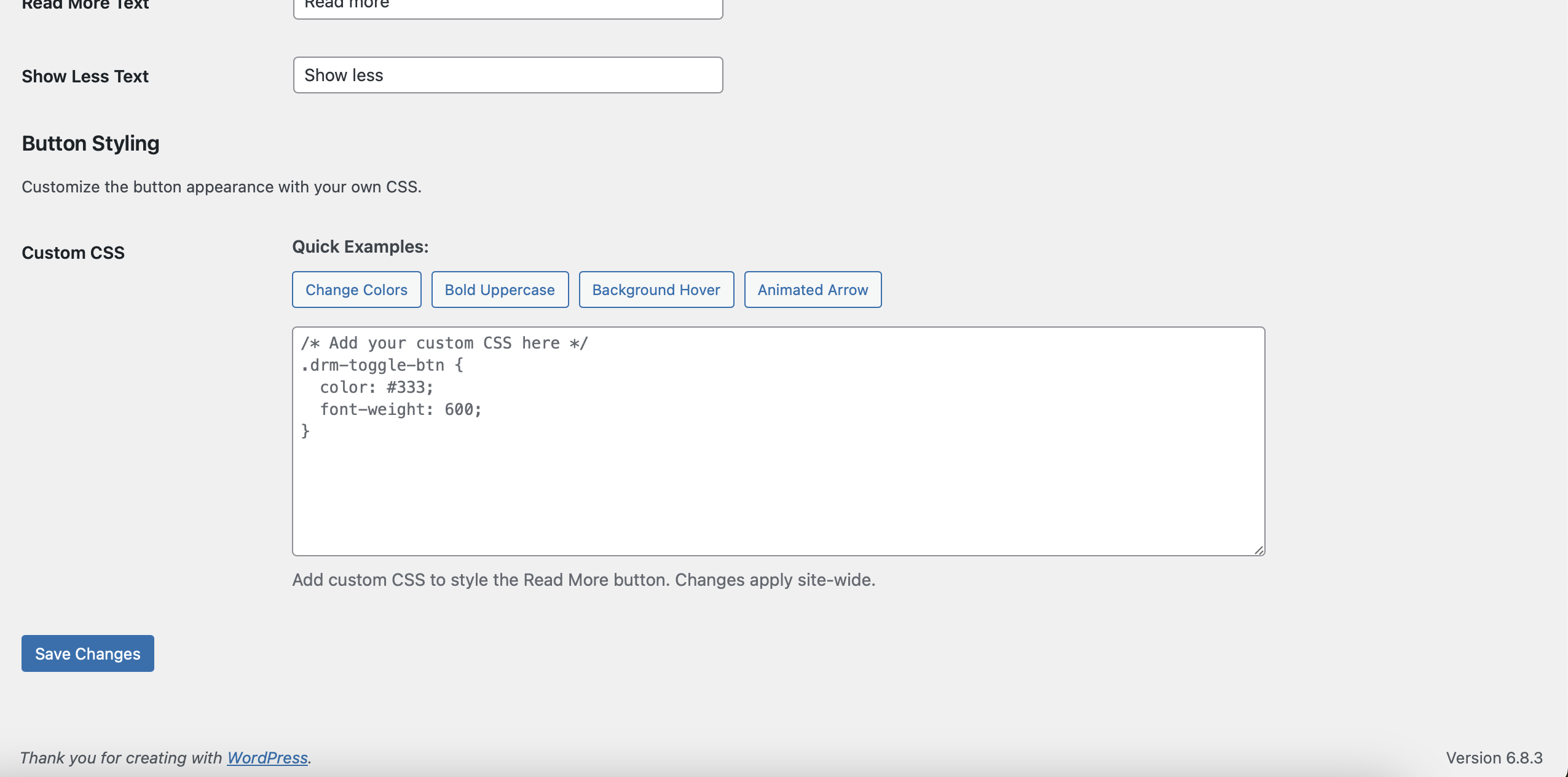
Customizable button text – set your own “Read More” and “Show Less” labels.
Styling flexibility – add predefined style classes or your own CSS.
Per-element overrides – adjust lines, height, and button text via data attributes.
Lightweight & optimized – no bloated scripts, works seamlessly with Divi Builder.
Visual Builder compatible – preview changes instantly inside the Divi Builder.
Use cases:
Show only a few lines of text on testimonials and let visitors expand if they want to read more.
Collapse long product descriptions and keep your product pages clean.
Use it on FAQs to display short answers with an option to expand for more details.
Add “Read More” toggles to blog excerpts to control content length.
With Divi Read More Toggle, you have complete control over how much content is visible at first glance – improving readability, user experience, and page design.
Live Demo — Divi Read More Toggle
How to Use:
- Open any Divi Text Module and add the class:
dech-readmore - (Optional) Add custom attributes like:
- data-drm-lines=”5″ → show 5 lines before expanding
- data-drm-height=”200″ → collapse to 200px height
- data-drm-more=”View details” → custom “Read More” text
- data-drm-less=”Hide details” → custom “Show Less” text
- Save changes and preview – the Read More / Show Less button will appear automatically.
Open the live examples
Your content goes here. Edit or remove this text inline or in the module Content settings. You can also style every aspect of this content in the module Design settings and even apply custom CSS to this text in the module Advanced settings.Your content goes here. Edit or remove this text inline or in the module Content settings. You can also style every aspect of this content in the module Design settings and even apply custom CSS to this text in the module Advanced settings.